Garmin watches are among the most popular running watches in the world, and Garmin Connect keeps every run you record. Sometimes you want those runs elsewhere: in another running app, as a backup, or for a coach. Garmin lets you export them, but the options are a little hidden.
The short answer
To export one run, open it on connect.garmin.com in a web browser, click the gear icon and choose "Export Original" to download a .zip with the FIT file. To export everything, go to your Garmin account's Data Management and request "Export your data"; Garmin emails a link to a .zip archive, which can take a few days.
How to export one run, step by step
- Open a web browser (a phone browser works) and sign in at connect.garmin.com.
- Go to Activities and open the run you want.
- Click the gear icon at the top right of the activity.
- Choose "Export Original" for the FIT file in a .zip, or "Export to TCX" / "Export to GPX".
- Save the file and import it into your other app.
"Export Original" is the best choice: it is the exact file from your watch, with heart rate, cadence, laps and everything else. Read FIT vs GPX vs TCX to see what the other formats keep.
How to export your full history
- Sign in to your Garmin account in a browser.
- Open Account settings, then Data Management (or Account Management → Data Management).
- Choose "Export your data" and confirm the request.
- Wait for the email: Garmin says it can take up to several days for large accounts.
- Download the .zip from the link before it expires.
Menu names change from time to time, but the export lives under your Garmin account's data or privacy settings.
What is inside Garmin's archive?
The full export is one big .zip with many folders. Your activity files are usually inside a folder named something like DI_CONNECT/DI-Connect-Uploaded-Files, packed into one or more further .zip files (for example UploadedFiles_0-_Part1.zip). Those inner .zip files hold your original .fit files. Other folders hold profile data, sleep, health stats and settings, mostly as JSON files.
| Folder | What it holds |
|---|---|
| DI-Connect-Uploaded-Files | Inner .zip files with your original .fit activity files |
| DI-Connect-Fitness | Activity summaries (JSON) |
| DI-Connect-Wellness | Sleep, steps, heart rate and health stats |
| DI-Connect-User | Profile and settings |
Importing into another app
- One run: many apps accept the "Export Original" .zip directly. If not, unzip it and pick the .fit file.
- Full history: open the big archive, find the inner UploadedFiles .zip files and import those, or unzip them and pick the .fit files.
- Duplicates: if you have already synced some runs, a good app skips runs it already has.
- Non-runs: rides, swims and strength sessions are in the archive too; running apps usually skip them.
Exporting vs linking accounts
Exporting gives you files once. Linking an app to your Garmin account (where the app supports it) sends new runs automatically. Exporting is perfect for moving your history; linking is better for keeping things in sync day to day. Many runners do both: export old runs once, then link for new ones.
Why export your Garmin data?
Which format to pick
Garmin offers three choices for a single activity. "Export Original" gives the watch's own FIT file and keeps everything. "Export to TCX" keeps heart rate, cadence and laps in a text file, which a few older apps prefer. "Export to GPX" is mostly the route and is best for sharing a course or loading it on another device. For moving your training history, always start with Export Original.
Exporting many runs without the full archive
Garmin Connect does not have a button to export a selected group of runs. If you only need the last few weeks, exporting them one by one is often quicker than waiting for the full archive. For months or years of runs, the full data export is the way to go, even if it takes a few days to arrive.
Troubleshooting
- No gear icon? You may be in the phone app. Use a browser.
- Export email never arrived? Check spam, and give it a few days for large accounts.
- File will not import? Make sure you picked a .fit, .tcx or .gpx file (or a .zip that holds them), not a JSON summary.
- Runs missing heart rate? You may have exported GPX; use Export Original instead.
Coming from Strava instead?
Strava works in a similar way, with "Export Original" for one run and an account archive for everything. See How to export your Strava data.
Import your Garmin runs into Windlace
- Tap Add activity and choose Garmin to see these steps in the app.
- Pick the "Export Original" .zip as it is; no need to open it. You can also pick many .fit files at once, or an inner UploadedFiles .zip from the full archive.
- Runs you already have are skipped, and rides or other workouts are left out.
- See your history come to life: records with medals, race predictions, zones and fitness from all your runs.
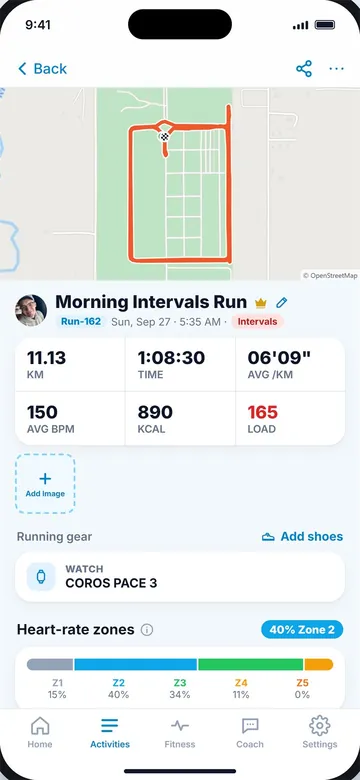
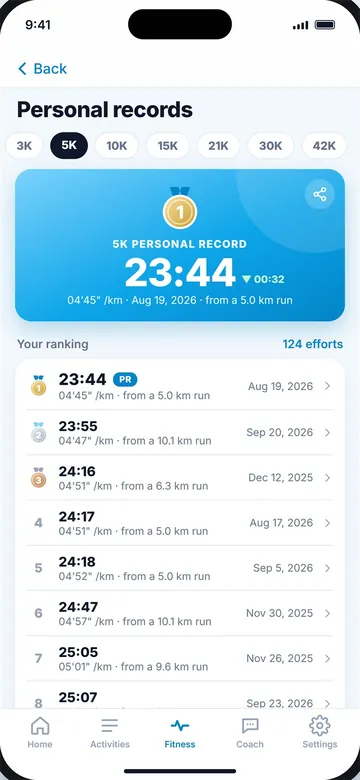
An imported run (left) and records from your history (right).
Key takeaways
- Export one run on connect.garmin.com: gear icon → Export Original.
- Export everything from your Garmin account's Data Management; the link arrives by email.
- The Garmin Connect phone app cannot export files; use a browser.
- In the full archive, your .fit files are inside inner UploadedFiles .zip files.
- Export Original keeps heart rate, cadence and laps; GPX does not keep everything.
Frequently asked questions
How do I export a run from Garmin Connect?
Open the run on connect.garmin.com in a browser, click the gear icon and choose Export Original.
Can I export from the Garmin Connect app?
No. The phone app cannot export activity files. Use a web browser instead.
How do I download all my Garmin data?
In your Garmin account, open Data Management and choose Export your data. Garmin emails a download link.
How long does the Garmin data export take?
Often hours, but Garmin says it can take several days for large accounts.
Where are the FIT files in the Garmin export?
Usually in DI_CONNECT/DI-Connect-Uploaded-Files, inside one or more UploadedFiles .zip files.

Keep reading
DataFIT vs GPX vs TCX: running file formats explainedWhat FIT, GPX and TCX files store, which keeps heart rate, cadence and laps, and which to choose when exporting.8 min read
DataHow to export your Strava dataExport one Strava activity or your full archive, what the files are and how to import them into another app.8 min read
DataRunning app vs running watch: which do you need?How phone apps and GPS watches compare on GPS, heart rate, battery, cost and comfort, and how to use both.8 min read